



 Note: All inquiries fitting the submitted criteria will be returned in a list, if there is more than one result.
Overview
Provider Inquiry Summary displays the current status / results of the Provider Inquiry.
The following is a step by step walkthrough of retrieving a provider inquiry summary.
Quick Notes
Submitting a Basic Provider Inquiry Summary
Note: All inquiries fitting the submitted criteria will be returned in a list, if there is more than one result.
Submitting a Provider Inquiry Summary with an Inquiry ID Number

Submitting a Provider Inquiry Summary with a Member Number
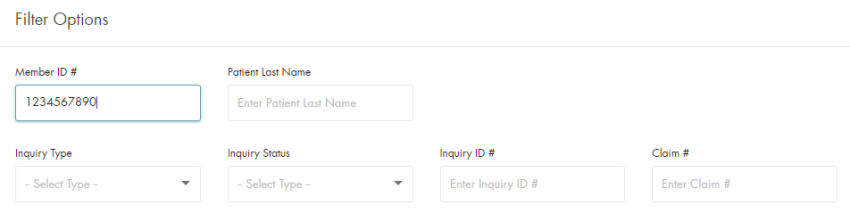 Note: All inquiries fitting the submitted criteria will be returned in a list, if there is more than one result.
Conclusion
This document covers the basic use cases for the Provider Inquiry Summary screen and the required fields for each.
There are additional request fields on the inquiry screen that can be included to assist the payer
with finding the requested inquiries.